Local analysis
Analyze, sort, optimize: get the most out of your Pokémon GO account.
Import a PGSStats.json file and get a clear report: progress, activity, battles, inventory, events and sensitive signals.
No data upload. Compatible with PGSharp.
PGSharp guide
Create the PGSStats.json file
This guide shows how to generate the file to import into PoGo Analyst. The screenshots below are real PGSharp screens with personal account details anonymized.
-
1
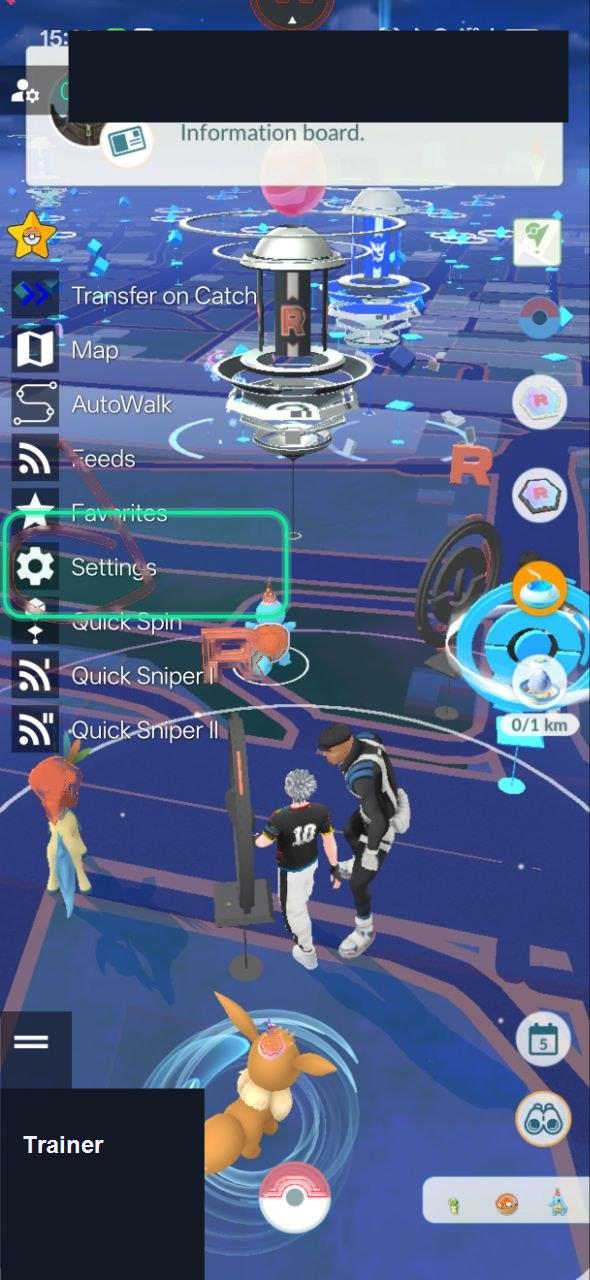
Open the PGSharp settings
From the map, open the PGSharp side menu, then tap Settings.
-
2
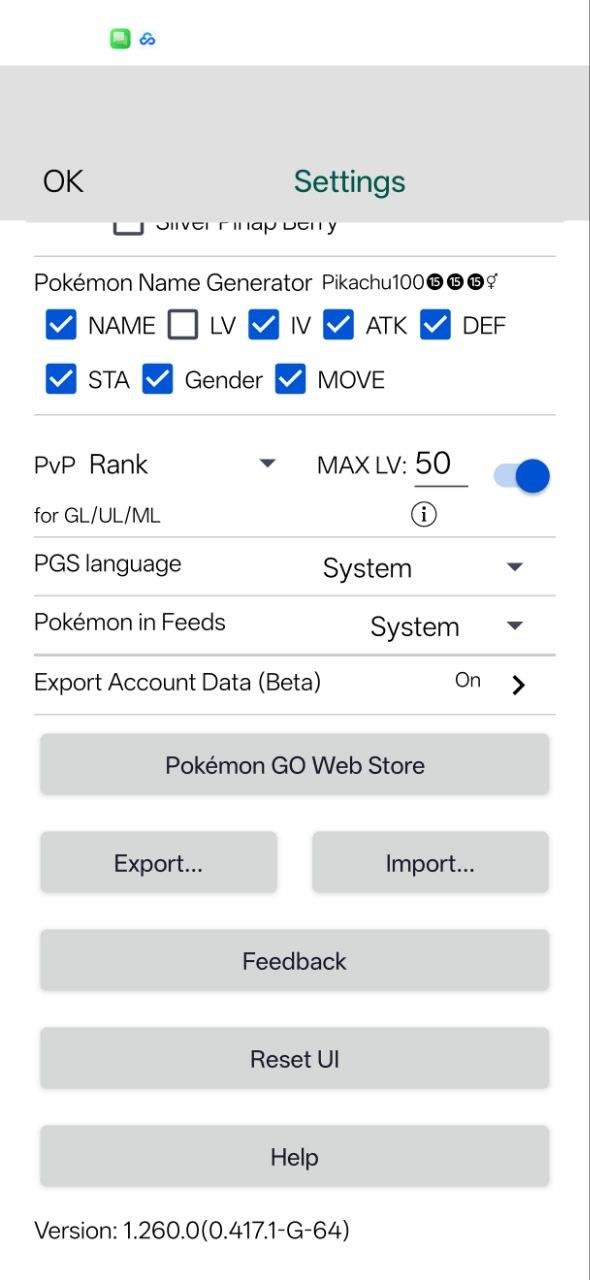
Find the account export option
In Settings, scroll to the lower part of the screen.
-
3
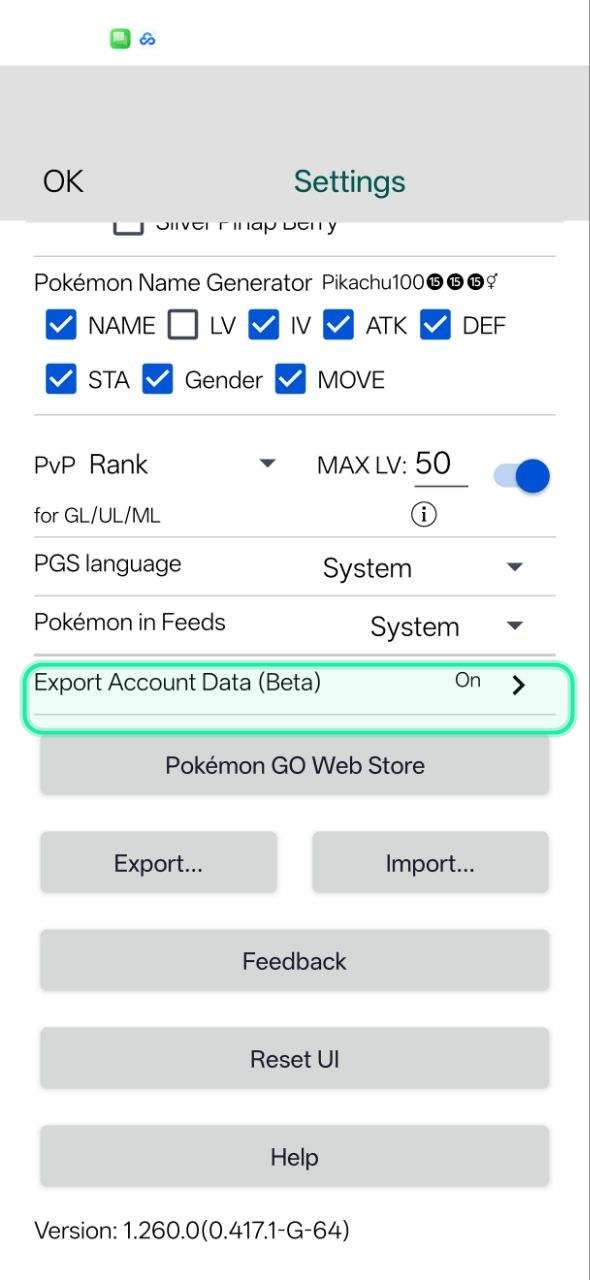
Open Export Account Data
Tap Export Account Data (Beta).
-
4
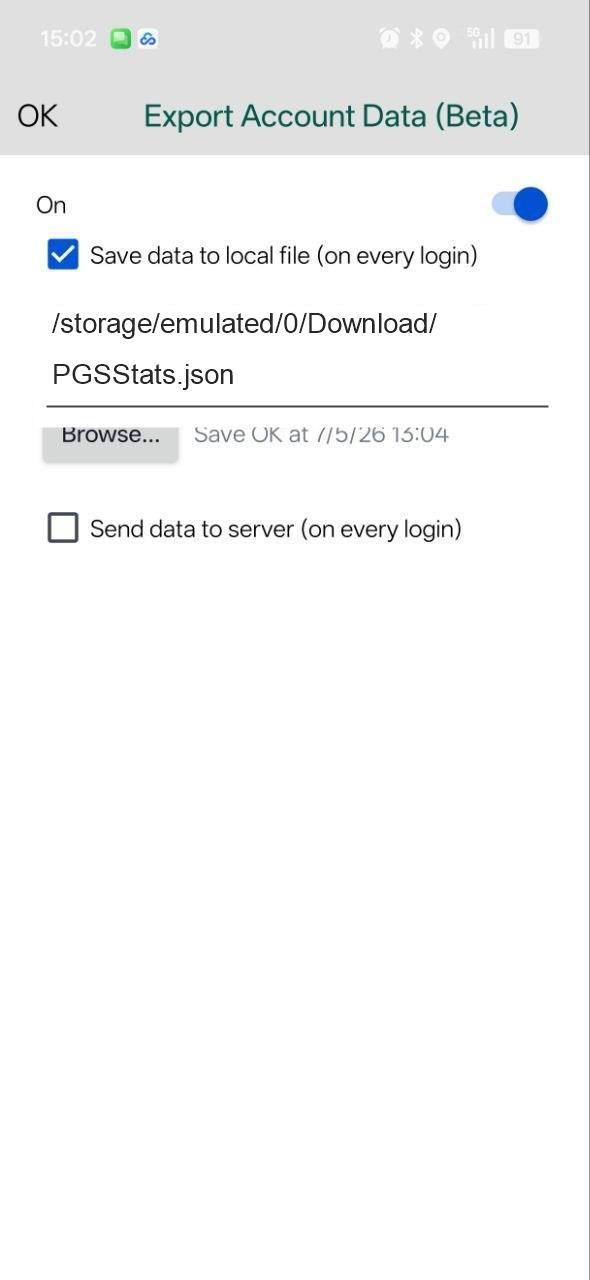
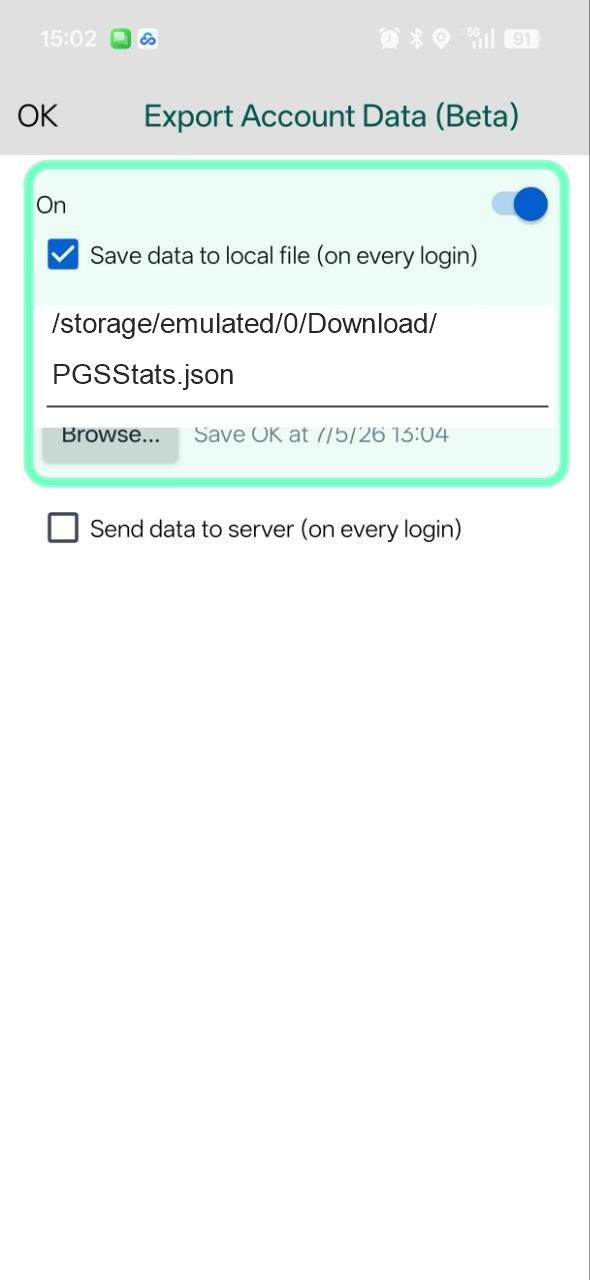
Enable local saving
Turn the export on and check Save data to local file. Keep Send data to server unchecked.
-
5
Choose where the file is saved
Use Browse if needed, then keep the file path visible. PGSharp will save PGSStats.json at the selected location.
Keep in mind
The file contains detailed information about the account. Keep it private, do not enable server upload in PGSharp, and generate a fresh file whenever the analysis needs to be updated.
If the file does not appear, check the selected path and Android storage permission, then restart Pokemon GO with PGSharp open.